Synchronize with other calendars
SuperSaaS offers different ways to connect your appointment schedules to other online calendar programs. You can let your SuperSaaS schedule depend on availability in your Google or Outlook Calendar. And you can publish appointment information in your SuperSaaS schedule to another calendar program, such as Apple Calendar or Outlook.
- Let availability in SuperSaaS depend on your Google or Outlook Calendar
- Let availability in SuperSaaS depend on someone else’s Google Calendar
- Publish SuperSaaS appointments to Google Calendar
- Publish a SuperSaaS schedule to another calendar program
Let availability in SuperSaaS depend on your Google or Outlook Calendar
SuperSaaS is able to connect directly to Google Calendar and use its free/busy information to determine your availability in SuperSaaS. You can also let the availability of your SuperSaaS calendars depend on your availability in a web based Outlook calendar. If you are using the desktop version of Outlook you would first need to sync that with Outlook.com.
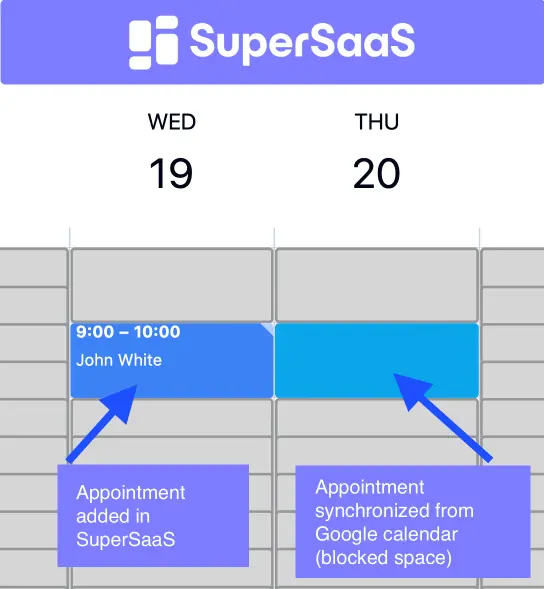
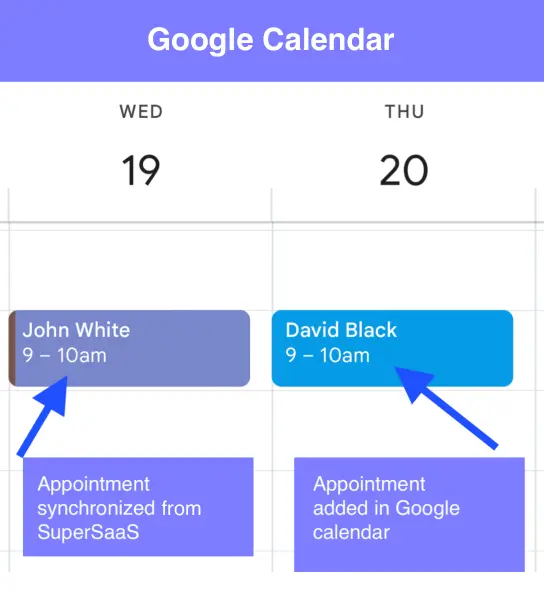
When you link a Google or Outlook Calendar to a SuperSaaS schedule, appointments in your Google or Outlook Calendar will be marked as unavailable in your SuperSaaS schedule.
This way, customers can only book when both your personal calendar and your general opening hours allow them to. Only the free/busy information will be synchronized, so your customers will not see any of the details from your personal appointments.
To synchronize your availability information:
- Go to Supervise > Synchronize on the schedule that you want to set the availability for
- At the “Connect to” heading choose “Google Calendar” or “Microsoft Outlook”
- Google or Microsoft may now ask you to log in and will show a confirmation screen
- Once the authentication screen closes you should see a list of calendars in your account
- Select one and save the page
Once this is set up, the SuperSaaS system will regularly check your Google or Outlook Calendar for changes. The frequency with which the availability information from Google or Outlook is updated depends on how often your schedule is accessed.
Whenever someone uses your schedule, the system evaluates whether its copy of your information is older than 15 minutes and if it is, it will update the information. This update process can take a few seconds, and it may take a second page refresh for the updated information to display. This should not be a problem for users, since they always use more than one page before they can make a booking. Updates are retrieved up to 5 months into the future, so you may want to ensure your users cannot book further in advance.
Ensure time zones are configured correctly
Ensure the time zone is set correctly, both in Google Calendar or Outlook and in SuperSaaS. The calendars can have different time zones, but times will automatically convert between them if they have different time zones. However, you should always make sure that such a translation happens intentionally.
Let availability in SuperSaaS depend on someone else’s Google Calendar
Sometimes it can be useful to read the availability of a Google Calendar to which you do not have full access. For example, a freelance employee may want to share their availability to perform a service for you. However, you would not want to ask full access to their Google account to achieve this. In that case, they can make only the availability information part of their Google Calendar public:
- In Google Calendar, the person who wants to share their availability can hover over the name of the calendar with the mouse and click the three dots that appear.

- Now click Settings and Sharing

- Choose Access Permissions in the menu on the left. Tick the checkbox Make Available to Public and select See only free/busy (hide details) option.

- Scroll down to the Integrate Calendar section and copy the calendar ID as shown below.
If there is only one Google Calendar, the ID is usually equal to the email address.
The employee can then share this ID with you.

- On your SuperSaaS dashboard, navigate to Supervise > Synchronize. Here you can click “Public Google Calendar” and then fill out the calendar ID. The software will verify the connection upon clicking . Note that if the access settings in the previous step were not set up correctly, the Google server will somewhat confusingly report “Not found”.


Publish SuperSaaS appointments to Google Calendar
You can configure publishing on the page Supervise > Synchronize. Under the heading “Publish to Google Calendar”, click the button “Connect to: Google Calendar”. Google will ask you to log in and once you return you can select one of your Google Calendars to add the appointments to. From then on new appointments will be added to your Google Calendar, and existing appointments will be updated. Note that publishing works one way, so changing the appointment in Google Calendar will not change it in SuperSaaS.
It’s a good idea to create a new Google Calendar before you set this up. That way the appointments coming from SuperSaaS will have a different color, and you can easily keep them apart from your own appointments. Having them in a separate calendar also makes it easy to delete all of them in one go, should that be needed.
Only new appointments, starting from the moment you set up the sync, will be transferred. If you would like to transfer existing appointments then you can download those via Supervise > Download. Select the option “ics – iCalendar” from the dropdown menu and then upload the resulting file to Google Calendar. However, appointments imported this way do not get updated if something is changed later. You can use the method described in the next section to import appointments in a way that propagates future updates as well, but that works more slowly.
Publish a SuperSaaS Schedule to another calendar program
You can publish your schedule to any calendar program that can subscribe to an industry standard iCalendar feed, such as Microsoft Outlook or Apple’s Calendar. The iCalendar link is one way; when you change something in your SuperSaaS schedule, it will be reflected in, for example, your Outlook calendar once it is synchronized. The appointments cannot be edited in Outlook.
You can also use the webcal link to show your bookings on the calendar of your mobile phone. However, the mobile version of our website is generally a better choice as it lets you edit appointments too.
These steps explain how to set up a webcal link. In this example we use Apple Calendar, but it will look very similar in other calendar programs:
- You will first need the webcal link. You can find this in your SuperSaaS account via Supervise > Synchronize
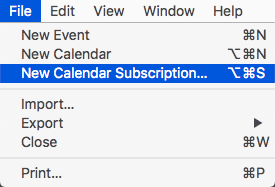
- In Apple Calendar click “File” and select “New Calendar Subscription…”.
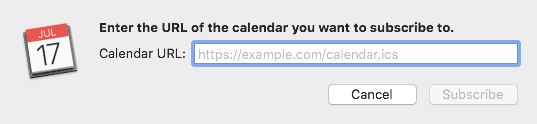
- A pop-up will appear where you can enter the link. After you select “Subscribe” the calendar SuperSaaS calendar should become visible.
On a subscribed calendar, the data is kept separate from the other appointments on your calendar. It is not actually merged, so you can easily delete it again without affecting your other appointments.
If instead you want to merge the appointments from your SuperSaaS calendar with those of your calendar program, then you can download them via Supervise > Download and upload them into your calendar program.
In that case, however, the appointments can no longer be automatically updated.
A middle ground is to have the SuperSaaS system automatically send you confirmation emails with a small iCal attachment each time an appointment gets made.
This allows you to add the appointments to your calendar with one click. You can add an iCal attachment by including the magic word $ical to your email confirmations.
The frequency with which the data is updated depends on the calendar program used, not SuperSaaS. The iCalendar protocol is quite inefficient as it requires the transfer of all calendar data for each update. This makes that most calendar programs choose not to update too frequently. Also, the iCalendar protocol only allows for a limited number of data fields to be sent across. This means that none of the custom fields you have defined in SuperSaaS will be transferred.
The iCalendar protocol does not provide authorization measures. If you are concerned people might find out your webcal link and use it without your knowledge, you can block it. On the Configure > Access tab, near the bottom of the screen you can select . After selecting this option synchronization via iCalendar will be disabled.